
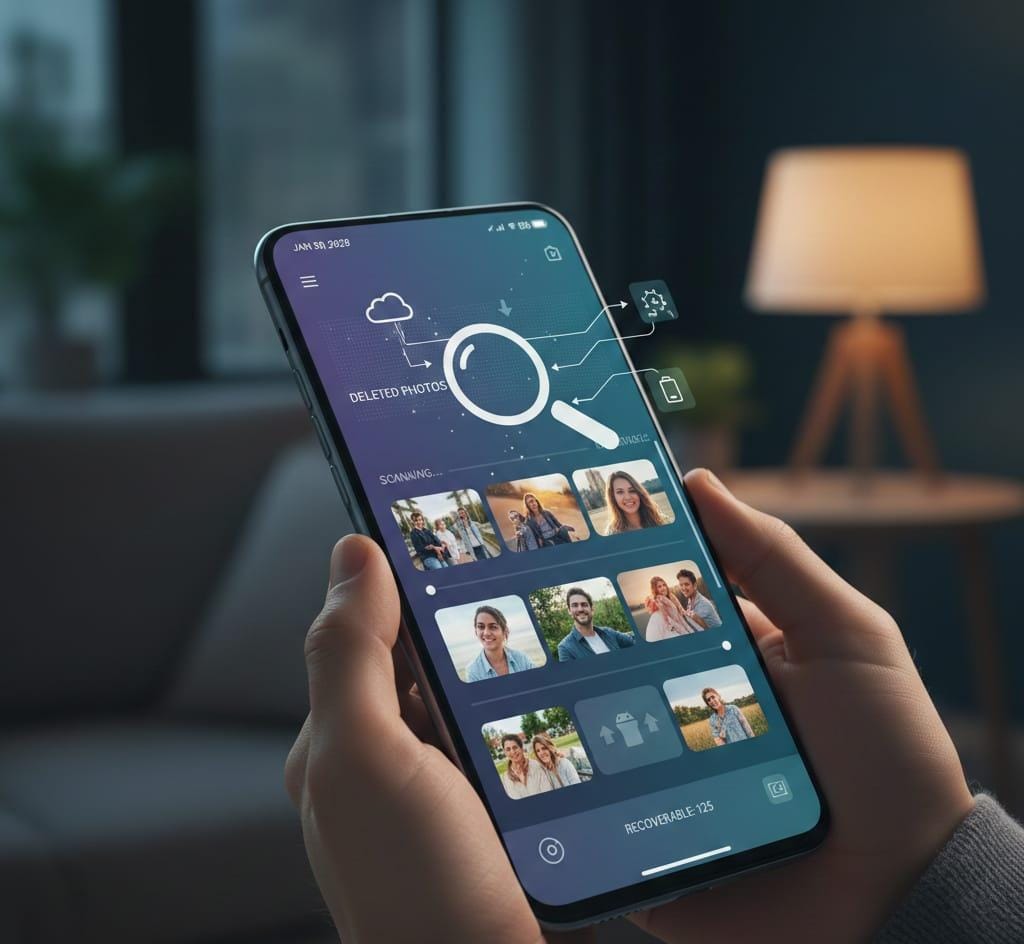
Accidentally deleting cherished photos from your Android device can be heartbreaking, but recovery is often possible without rooting your phone. This guide covers proven, root-free methods using built-in features, apps, and backups to restore your images safely and effectively.
You can recover deleted photos on Android without root by checking the Recycle Bin in Gallery or Google Photos, restoring cloud backups, or using apps like DiskDigger and Dumpster. Act quickly before files are overwritten.
Why Deleted Photos Aren’t Always Gone Forever
When you delete a photo on Android, it doesn’t vanish immediately from storage. The file system marks the space as available, but the data lingers until overwritten by new files. Acting fast boosts recovery chances—avoid saving new photos, apps, or data right after deletion. Android’s internal memory or SD card holds these remnants, accessible via scans or backups without root access.
Rooting risks voiding warranties and bricking devices, so these methods prioritize safety. Success rates depend on time elapsed and device usage post-deletion, with built-in tools recovering up to 60 days’ worth in some cases.
Check Your Device’s Recycle Bin First
Many Android gallery apps and file managers feature a “Recently Deleted” or Trash folder, holding files for 30-60 days. Open your stock Gallery app, navigate to Albums or Library, and tap “Recently Deleted” or “Trash.” Select photos, hit Restore, and they return to your gallery instantly.
For Google Photos users—pre-installed on most Androids—deleted items stay in Trash for 60 days if backed up. Steps: Launch Google Photos > Library > Trash > Select photos > Restore. This works across devices if sync is enabled, pulling from the cloud. Non-backed-up photos might still appear if recently deleted locally.
Restore from Google Photos Backup
Google Photos is Android’s default photo hub, auto-syncing to the cloud for free (up to 15GB shared storage). If Backup & Sync was on, deleted photos live in Trash. Enable it via Photos settings > Backup > Turn on—use “Storage saver” for compressed originals to save space.
To recover: Sign in with your Google account on any device, go to photos.google.com or the app, access Trash, and restore. For permanent deletions beyond 60 days, check Google Drive if integrated—Trash holds files for 30 days. This method recovered photos for users even after factory resets, as long as the account synced.
Use Preventive Recycle Bin Apps Like Dumpster
Apps like Dumpster act as an always-on recycle bin, no root needed. Install from Play Store, grant permissions, and it backs up deleted photos/videos automatically. Deleted files appear in Dumpster’s interface—tap to restore in seconds.
Pros: Proactive protection, supports photos, videos, apps; free version suffices for basics. Cons: Runs in background (minimal battery hit), premium unlocks unlimited storage. Install before deletions for best results; it catches gallery deletes instantly. Over 100 million downloads confirm reliability on Samsung, OnePlus, Xiaomi.
Scan with Free Recovery Apps: DiskDigger and More
DiskDigger leads free no-root scans, detecting photos in internal storage/cache. Download, select “Basic Scan” (no root), preview thumbnails, and save recovered JPG/PNG. Pro version unlocks deeper scans/videos, but free handles most photo losses.
Alternatives:
- Undeleter: Simple interface, scans SD/internal for images.
- File Recovery Apps: Like “Photo Recovery” tools, preview and restore without root.
- Dr.Fone Mobile: App version scans gallery; full PC tool for deeper recovery.
| App | Free Scan Depth | File Types | Storage Support | User Rating |
|---|---|---|---|---|
| DiskDigger | Basic (photos) | JPG, PNG, Videos (Pro) | Internal/SD | 4.6/5 |
| Dumpster | Recycle bin-style | Photos, Videos, Apps | Internal/SD | 4.5/5 |
| Dr.Fone | Gallery/Internal | Photos, Messages | Internal | 4.4/5 |
Success depends on how quickly recovery is attempted and whether data has been overwritten.
Recover via PC Software Without Root
Connect to PC for powerful scans. Tools like EaseUS MobiSaver or Tenorshare UltData scan without root via USB debugging.
Steps for EaseUS:
- Install on PC, connect Android (enable USB debugging: Settings > Developer Options).
- Select “Photos,” scan internal/SD.
- Preview/select > Recover to PC.
Dr.Fone or iMyFone D-Back similarly: Quick scan (5-10 mins), high success on Samsung Galaxy, Pixel. No data overwrite on phone. Free trials preview files; paid unlocks exports (~$50/year).
Restore from Other Cloud Backups
OneDrive (Microsoft): If auto-sync enabled, check Recycle Bin—restores in 30 days. Steps: OneDrive app > Recycle Bin > Select > Restore.
Samsung Cloud (Galaxy users): Settings > Accounts > Backup/Restore > Gallery. Holds photos for device-specific recovery.
Google Drive: Manual uploads appear in Trash. Auto-backup folders sync seamlessly.
As Android tools evolve alongside AI-powered coding trends, recovery apps are becoming smarter and more accurate.
Advanced Tips for Tough Recoveries
- Enable Developer Options: Quick Settings > tap Build Number 7x > USB Debugging for PC tools.
- Safe Mode Scan: Boot Safe Mode (hold Power > long-press Restart), run apps to avoid third-party interference.
- SD Card Specific: Eject, scan on PC with Recuva (free).
If photos were in WhatsApp, check chat backups via Google Drive. For 2026 Android 16, methods remain compatible—no major storage changes.
Prevention: Never Lose Photos Again
Auto-backup is key. Set Google Photos sync daily; use “Original quality” for pros, “Storage saver” for masses. Apps like Autosync for OneDrive keep multiples.
- Enable device backups: Settings > System > Backup > Google Account.
- Regular exports to PC/external drives.
- Use folders like “Important” with pinned apps.
| Prevention Method | Ease | Coverage | Cost |
|---|---|---|---|
| Google Photos Sync | High | Unlimited (compressed) | Free (15GB) |
| Dumpster Recycle | High | Local deletes | Free/Pro |
| PC Auto-Sync | Medium | Full control | Free |
These habits ensure 99% safety—backups beat recovery every time.
If you’re interested in building strong technical skills beyond mobile recovery, learning the best coding languages for high-package jobs can open doors to better opportunities.
Common Pitfalls and Quick Fixes
Overuse post-deletion overwrites data—switch to airplane mode immediately. Factory reset? Cloud backups save the day. Corrupted SD? Format after PC copy.
For empty Trash: Apps/PC scans catch “permanently deleted.” Test on old device first.
FAQs on Android Photo Recovery
How long do deleted photos stay recoverable?
60 days in Google Trash; varies for scans until overwritten.
Best free app?
DiskDigger for scans, Dumpster for prevention.
Works on all Androids?
Yes, Samsung to Pixel, Android 10-16 without root.
Leave a Reply